
Privilege Escalation
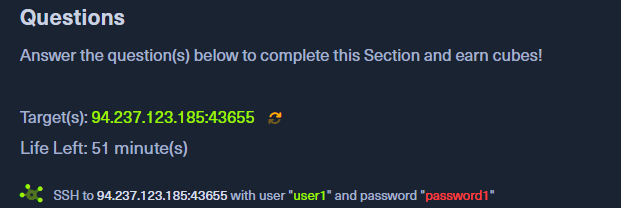
Firstly we need to SSH with the credentials given.
ssh [email protected] -p 43655
Typically, the ssh port would normally be 22, however in this case, it's 43655. If we didn't use -p to state the port, then it would default to 22, therefore we must specify to look at port 43655.
From there, we need to look around. I started by "ls" to see if I could discover anything, as well as started trying to do things like running sudo -i, etc. Finally, I tried
sudo -l
This allowed me to see what I had permission to, and was the answer immediately.
User user1 may run the following commands on
        ng-363609-gettingstartedprivesc-qbdks-55d955b4d7-bh878:
    (user2 : user2) NOPASSWD: /bin/bash
This meant that no password was necessary to run the command /bin/bash, which is fantastic, because /bin/bash is a shell, therefore we need to specify it to try and use it as user2.
To do this, we run sudo -u user2 /bin/bash
from there, we cana head to the home directory of the user and see the flag is there.
cd /home/user2 ls cat /home/user2/flag.txt
This then reveals the first answer.
HTB{l473r4l_m0v3m3n7_70_4n07h3r_u53r}
From there, we can try to get into root. Given that the lesson was talking about .ssh, we can presume we need to go in there, of course being under the root folder.
cd /root/.ssh
and try to access the private key. This of course works and we can read what is stated in the key by doing cat id_rsa. Then, in a separate terminal, we can create a new file (I prefer nano personally), with the said key, save it, change permissions of the ssh key to chmod 600 to prevent erroring, and then trying to connect to SSH with the private key.
To do that, you would need to specify to use the private SSH key, rather than your personal one, therefore a command like this would be necessary: ssh [email protected] -p 43655 -i id_rsa
to which then, the flag is sitting comfortably right there within the root folder waiting for you to take it.
HTB{pr1v1l363_35c4l4710n_2_r007}